How to Fix Hot and Stuck Pixels on a Canon Camera Yourself (No Repair Needed)
Translated from the Korean original. Read the original →
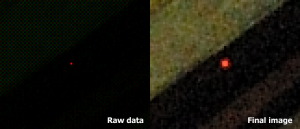
Bad pixels come in two kinds: LCD bad pixels and CMOS sensor bad pixels. LCD bad pixels show up on the camera's screen but have no effect at all on your image files, while sensor bad pixels affect the actual pixels in your photos. Broadly speaking, there are three types: "hot pixels" that are always on, "dead pixels" that are always off, and "stuck pixels" that are somewhere in between. A hot pixel glows pure white even when you shoot something dark, and a dead pixel is the opposite. The most common kind is the stuck pixel, which shows up as red, green, or blue.
Bad pixels can be there from the factory or appear later as you use the camera. Unfortunately, Canon doesn't treat a camera as defective unless the number of bad pixels goes over a certain limit, so those units ship out as perfectly normal. As a customer, finding bad pixels on a brand-new camera is pretty frustrating... LCD bad pixels don't affect your photos, so you can just live with them, but sensor bad pixels show up in your shots, so there's no way around getting it repaired. And a trip to the service center means parting with your hard-earned money...
I recently picked up a 100D (the Rebel SL1 in the US) and had been using it for a bit, but when I looked closely, the sensor had a bad pixel. With the body cap on and Live View turned on, there it was: a clearly visible red dot! I googled around hoping there was some kind of fix, and stumbled on something pretty surprising...
https://kameratrollet.se/how-to-get-rid-of-hot-pixels-on-a-canon-camera/
The person who wrote the post above got rid of his bad pixels in a really unusual way. It's super simple:
1. Turn on your Canon camera.
2. Go to Menu > Setup > Sensor cleaning > Clean manually.
(The mirror flips up and the sensor is exposed.)
(Note: the automatic sensor cleaning won't do the trick.)
3. Take off the body cap, expose the sensor to different kinds of light, and wait 30 seconds.
4. Turn the camera off and back on.
Amazingly, the red stuck pixel was gone!
If you're reading this, give it a shot. You've got nothing to lose...
If all it takes is exposing the CMOS image sensor to light, like a fluorescent lamp, for a while, the same trick should work on iPhones, Galaxy phones, iPads and so on. Of course, with those you'd have to take the device apart to get at the sensor...
Image source: http://www.pixelfixer.org
More in Camera & Lens
See all- Yanghwa Bridge Café with a View: COFFINE GURUNARU on the Han River, Seoul
- Sigma 30mm Art: A Must-Have Lens (Bugak Skyway to Jangwi-dong, Seoul)
- How to Fix Hot and Stuck Pixels on a Canon Camera Yourself (No Repair Needed)
- How to Calibrate Lens Focus Yourself with the Sigma USB Dock (AF Fine-Tuning)(1)
- Late-Night Neighborhood Walk – "Find the 20 Hidden Bugs"
Comments 0