How to Show EXIF Photo Info on Your Blog (PhotoScape and WordPress)
Translated from the Korean original. Read the original →

Gion Shinbashi is a hidden gem packed with traditional Japanese buildings, a sort of back street of Gion (well known among Japanese people, but hardly known at all among Koreans). If I ever go back to Kyoto, it's a place I'd definitely want to visit again... Anyway, let's use this photo as our guinea pig. Launch PhotoScape and click Editor > Object > Text, and you can pick and choose which EXIF details to put on the photo, like this.
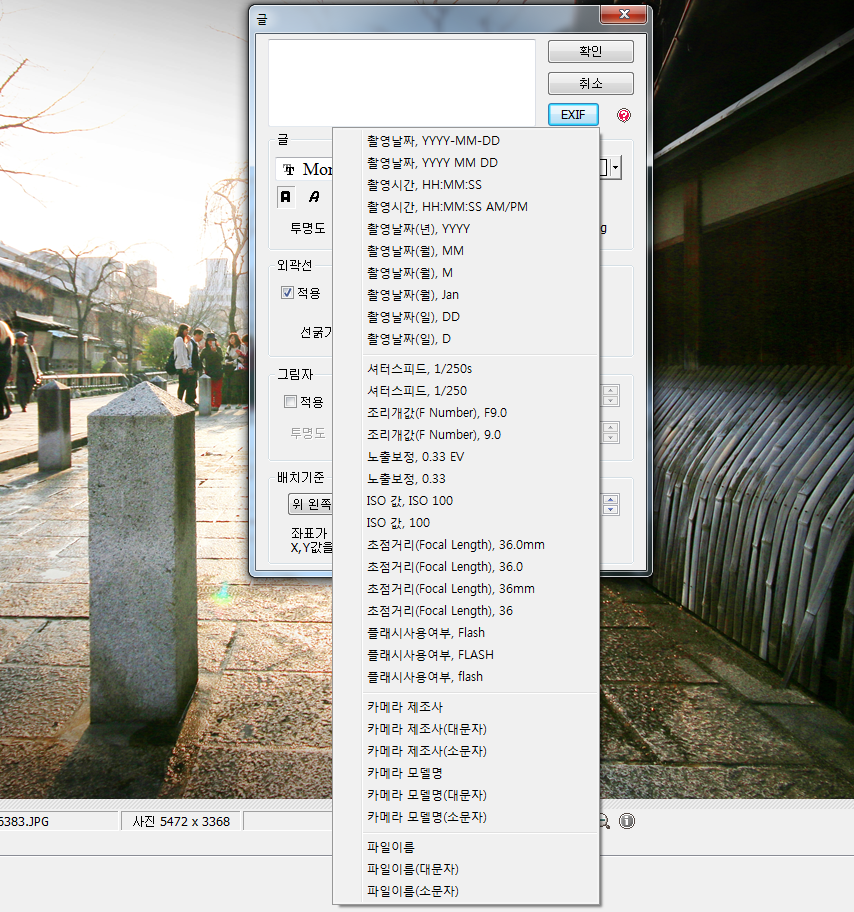
Unfortunately, it doesn't show which lens was used. There's not much you can do about that, since the camera itself doesn't record which lens was mounted. Some recent cameras do record lens information, though. On the Canon 70D, you can have the lens name pop up on the LCD screen when you switch lenses, but that information isn't automatically saved in the photo itself.
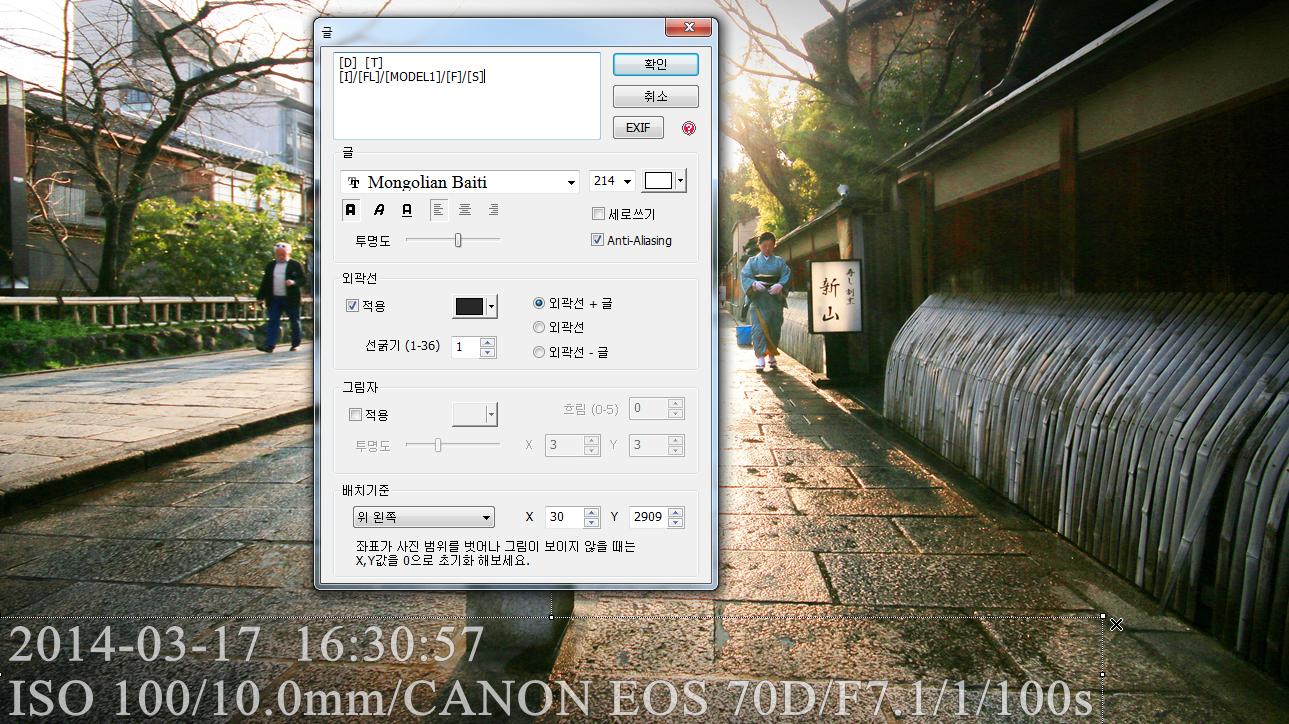
Here's the photo with the EXIF info added. You can tweak all sorts of things, like the position, font and text color. Once you've set up the design and formatting, you can add it automatically with a single click later on, so it's not much of a hassle. PhotoScape also has a "Batch Editor" menu that lets you edit 100 or more photos at once...
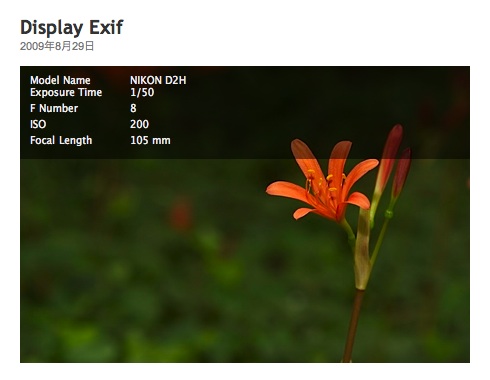
But putting that much information on a photo makes it look a bit cluttered (and honestly, it's also kind of a chore). Since this blog runs on WordPress, I use a plugin called "Display EXIF (download)". Once you install and activate it, hovering your mouse over any photo that has EXIF data shows that information at the top, as in the picture above (super convenient!). On mobile there's no such thing as "hovering," so tapping a photo brings up its EXIF info, and tapping another photo makes the box disappear.
More in Blog Tips
See all- What I've Learned as My YouTube Channel Has Started Taking Off
- Switching My Blog to the NanumSquare Web Font: A Review(5)
- How to Show EXIF Photo Info on Your Blog (PhotoScape and WordPress)
- How to Use Naver Syndication (Naver Webmaster Tools) with WordPress(7)
- Google AdSense Cost per Click (CPC): Why Clicks from Korea Pay Less(1)
Comments 0