How to Use a Japanese Web Font in WordPress with @font-face
Translated from the Korean original. Read the original →
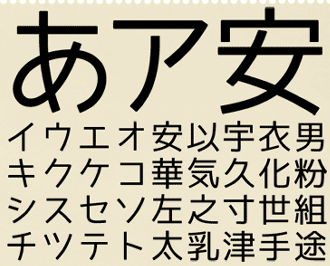
When you build a website with WordPress, the biggest headache is Japanese fonts. If you don't care much about fonts, the default might be fine, but for people like me who are picky about fonts, it's hard to live with. In this post I'll show you an easy way to switch to a Japanese font using @font-face.
1. Get a Japanese font
The first thing to do is pick a font. How the font looks matters, of course, but the most important thing is the file size. Pages on the web need to load fast, so a font with a small file is best. If you're going to serve it from your own server, something under 1.0MB is about right (fonts with only hiragana and katakana can be as small as 10kB, and there are plenty of them). The font I recommend is M+ 1p Regular. The font's official site is here, and you can download it for free here. The license is free too, so no need to worry.
2. Convert the TTF font to WOFF
The font you get from the site above is mplus-1p-regular.ttf. But TTF files are large, and they may not work in Internet Explorer. So you'll want to compress the TTF font into WOFF format. You can do that easily on this site:
http://everythingfonts.com/ttf-to-woff
The 1.3MB mplus-1p-regular.ttf becomes an 800kB mplus-1p-regular.woff.
3. Upload the font to your server
Upload mplus-1p-regular.woff to a suitable place on your server (usually the root).
4. Edit the CSS
Open style.css, the file that controls your site's styles, and add this code at the very top:
@font-face{
     font-family: mplus-1p-regular;
     src: url('/mplus-1p-regular.woff');
     format('woff');}
Then set mplus-1p-regular in font-family, for example like this:
html, body, div, span, applet, object, iframe,
h1, h2, h3, h4, h5, h6, p, blockquote, pre,
a, abbr, acronym, address, big, cite, code,
del, dfn, em, font, ins, kbd, q, s, samp,
small, strike, strong, sub, sup, tt, var,
dl, dt, dd, ol, ul, li,
fieldset, form, label, legend,
table, caption, tbody, tfoot, thead, tr, th, td{
      font-family: mplus-1p-regular, sans-serif;
      font-size:100%;
      font-style:inherit;
      font-weight:inherit;
}
And that's it. Of course, if you're willing to spend some money, you can probably find fonts that are even smaller and better-looking.
More in Blog Tips
See all- Blog Statistics (2013.07.01 - 2013.10.04)
- Making My WordPress Blog Mobile-Friendly with a Responsive CSS Framework(3)
- How to Use a Japanese Web Font in WordPress with @font-face(4)
- How to Reduce ttf, eot and woff Font File Size(5)
- Chrome User-Agent Switcher: See How Your Site Looks in Other Browsers and on Mobile
Comments 4
와 카테고리 너무 깔끔하다 ㅠㅠ 카테고리관련 플러그인 쓰시는건가요?
방문 감사드립니다! 헤헤 아닙니다. 그냥 Enhanced Text를 위젯에 추가한 후에 노가다 코드를 써 줬습니다..OTL
Mathematics
In Handai
M2 Seminar I~II
괄호 숫자의 경우, 카테고리의 포스트 숫자를 불러오는 코드로
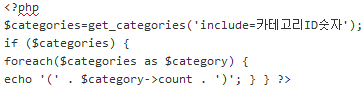
를 썼습니다.
こちらの記事を参考にいたしました。
丁寧かつ端的に記載してくださっているので、素人でもなんなくフォント変更ができました。
ありがとうございます。
これからも、こちらのサイトを参考にいたします。
コメント有難うございます!助けになれてよかったですね。今後も宜しくお願いいたします!